Updated: January 22, 2026
Here's a simple yet juicy topic. Muscle memory is both a blessing and a curse. How so, you ask? Well, I've gotten myself a Macbook Pro. Nice machine and all that. Then, since I'm also a pretty serious Linux user, I've set up an Ubuntu + Plasma virtual machine, using VirtualBox, for my Tuxy needs. So far so good. Where things go ever so slightly off the tangent is once you start typing or using keyboard shortcuts.
Being an long-time PC person, my fingers are accustomed to standard PC keyboard, with the Ctrl button as the outermost one, followed by Fn, and then some. The usage of these keys is so ingrained in my brain that I actually remapped the Mac's own modifier keys to match the Windows/Linux usage. But now, there's a fresh problem. The Linux virtual machine obeys the keys as is. What to do? Well, there's a simple solution.
Problem, so to speak, in more detail
Yes, I changed my Macbook keyboard layout. To wit, it looks like this:
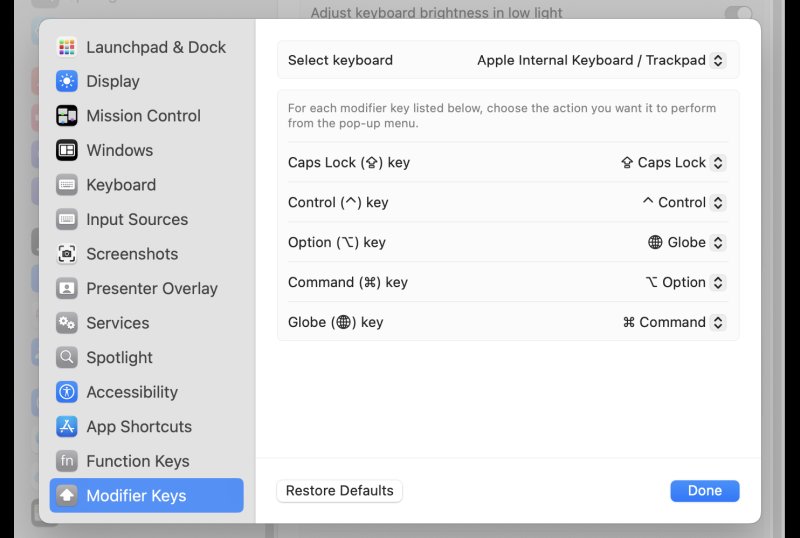
This is as close as you can get to a classic Windows or Linux setup. But in the virtual machine, the Linux guest operating system obeys the default Macbook layout, i.e., the way the keys are labeled on the actual keyboard. Now, I have a double problem. Not only are the two different, the Linux guest also behaves weirdly, with the buttons all wrongly positioned. My fingers cannot unlearn the old tricks, or worse, manage two different layouts simultaneously.
Simple solution
I promised, and so it is. Now, the actual simplicity will depend on which Linux desktop use, and what options it exposes by default. My choice is the superb and superior Plasma desktop, which indeed offers the ability to modify the keyboard layout using a number of clever defaults. I don't know if this is possible in other desktop environments, like Gnome or Xfce. I presume there ought to be an option somewhere.
What you want to do is: Settings > Keyboard > Advanced. Tick the box that says: Configure keyboard options. Here, under Alt and Win behavior, there will be a dozen different configurations. You want the one labeled: Ctrl is mapped to Win and the usual Ctrl. Apply. Enjoy.
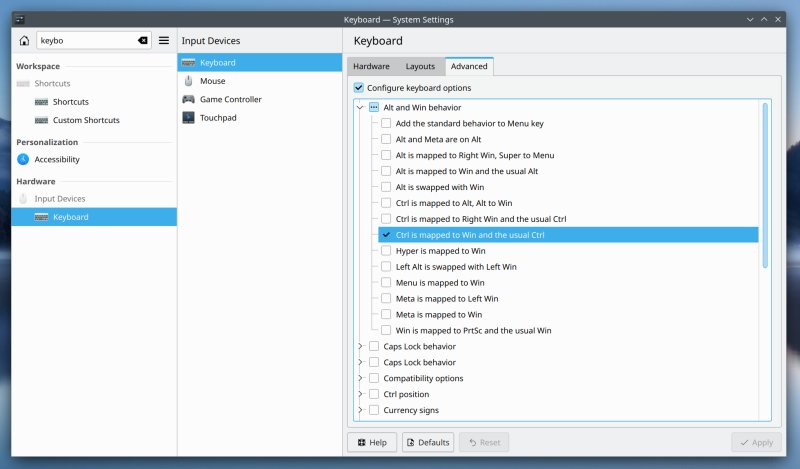
This now matches my Macbook configuration, which has been changed to match my standard Linux configuration that I use on other devices. No more confusion, no more wrongly executed keyboard shortcuts. And if you also set your Macbook to use Fn keys as regular Fn keys, you have an almost de-facto standard PC keyboard. Almost. But this is it, job done.
Conclusion
If you happen to use more than one operating system, you will occasionally encounter issues with defaults that go against your ingrained reflexes. I'm not here to debate which setup is superior, the PC or the Mac one. Both possibly have their merits, and they definitely make 100% sense to their existing users. Since I intend to keep using all these different layouts, for me, the simplest and most logical option is to subvert Mac's behavior to that of the classic PC setup.
With virtualization added into the equation, this creates a wee problem, as the virtual machine guest operating systems do not see the remapping, and behave the way macOS intends. This conflict is quite tricky, and best resolved, so both systems behave one and the same way. Luckily, in Linux, or to be more precise, in the Plasma desktop, it is quite easy to modify the key behavior. Thus, we go from Mac > Linux > Mac > Linux, and everything is cushty. I hope you enjoyed this little piece. See you around.
Cheers.